
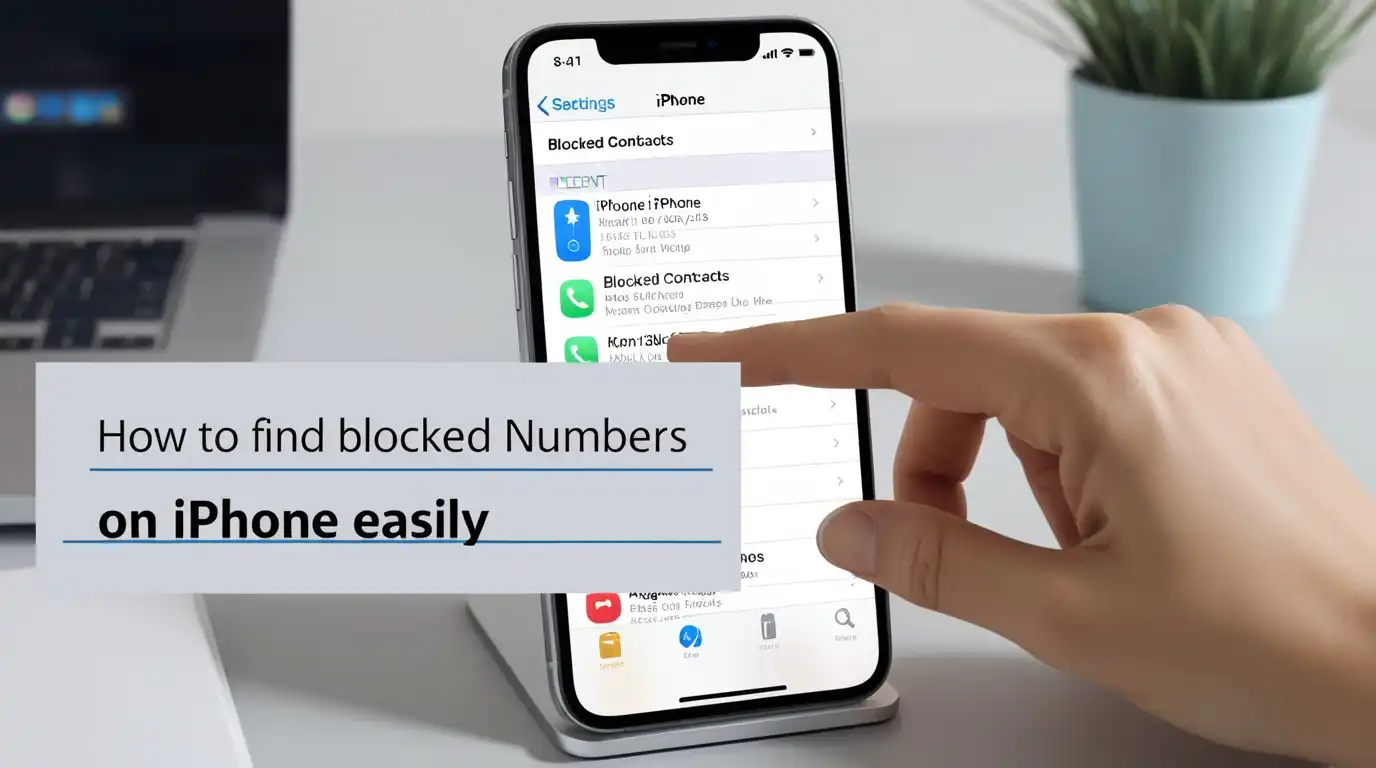
It happens to all of us. You block someone during a heated moment, thinking, That’s it, I’m done. Weeks pass. Maybe even months. Then one day, curiosity hits. You’re scrolling through messages or missed calls, and you start wondering — Who did I block again? Maybe it was a telemarketer. Or maybe… someone you actually miss hearing from. The thing is, iPhones make it easy to block numbers, but the list isn’t something most people check often. It’s tucked away inside your settings — hidden, quiet, almost secretive. But once you know where to look, it’s simple. Effortless, really. Let’s talk through it, not like a manual, but like a friend walking you through their own moment of rediscovery. Because if you’ve ever had that tiny spark of curiosity (or guilt) about your blocked list, you’re not alone.
Why You Might Want to Check Blocked Numbers
Blocking someone is easy. Unblocking them? That’s a different story. Sometimes you want to make sure that one number — the spammy one that keeps calling at midnight — is still blocked. Other times, you might have accidentally blocked someone important. It happens more than you’d think. Or maybe you’ve changed your mind after a fight with a friend or partner. There’s something oddly satisfying about revisiting that list like flipping through old memories — except, well, with phone numbers. And honestly, knowing how to check it can save you confusion later. Especially when someone says, “I called you, but it never rang,” and you’re sitting there thinking, Wait, did I block them?
How to Find Blocked Numbers on iPhone
Apple keeps the blocked list neatly tucked away in different apps, depending on where you blocked the person — Phone, Messages, or FaceTime. But don’t worry, it’s not hard to find. Here’s how to check them all:
1. From the Phone App
- Open the Settings app on your iPhone.
- Scroll down and tap Phone.
- Tap Blocked Contacts.
- You’ll now see a complete list of every number and contact you’ve blocked from calling you.
2. From Messages
- Go to Settings.
- Tap Messages.
- Select Blocked Contacts.
- This shows numbers or contacts you’ve blocked from sending you texts or iMessages.
3. From FaceTime
- Again, open Settings.
- Tap FaceTime.
- Tap Blocked Contacts.
- This list includes numbers you’ve blocked from making FaceTime calls.
These lists are connected — meaning if you unblock a number in one place, it’s unblocked everywhere else too. It’s all synced under your Apple ID.
How to Unblock a Number
Okay, so you’ve found the list. Maybe there’s a familiar number sitting there. You hesitate. You’re tempted to hit “Edit.” If you decide to give them another chance — or if it was a mistake — here’s how to remove them from the list:
- Tap Edit in the top-right corner.
- Hit the red minus (-) icon next to the contact or number.
- Tap Unblock.
- That’s it. The number’s back in your good graces. They can now call, text, or FaceTime you again — though whether you want them to is another question entirely.
What Happens When You Block Someone
A lot of people think blocking someone means they’ll know. They won’t. iPhones don’t send any notifications to the blocked person. Their texts… stop reaching you. Their calls go straight to voicemail, though you won’t get a notification for that either. It’s silent. Peaceful. Like they vanished from your phone’s world. But when you unblock them, everything goes back to normal. Messages start flowing again. Calls ring like nothing ever happened. So if you’re worried about awkward moments — don’t be. They’ll never know unless you tell them.
How to Know If You’ve Been Blocked (The Reverse Curiosity)
Here’s where things get interesting. Sometimes you’re not the blocker — you’re the one blocked. If your calls always go straight to voicemail, or your texts never show “Delivered,” that might be a hint. Though there’s no official Apple setting that tells you, these signs are often a giveaway. Suppose you’re curious about it (and let’s be honest, we all have been). You might also want to check out this guide: [How to view blocked messages on iPhone]. It explains what happens to texts sent from blocked numbers — because those messages don’t just disappear into the void for no reason.
Why Apple Keeps It Subtle
Apple doesn’t throw “Blocked!” alerts around for a reason. The whole idea is privacy and peace. Blocking is meant to be quiet, respectful, and even. No drama. No confrontation. You choose who reaches you, when, and how. And that’s one of the best parts about iPhone’s design — it’s all about control without chaos.
FAQs About Finding Blocked Numbers on iPhone
1. Can I see when I blocked someone?
No, iPhones don’t show timestamps for when a number was blocked. You’ll see the contact or number listed under Blocked Contacts.
2. Will unblocking a number restore old messages or calls?
No, unblocking only allows future communication. Messages or calls made while they were blocked won’t appear once you unblock them.
3. Can blocked numbers still leave voicemails?
Yes, but they’ll go into a separate “Blocked Messages” section in Voicemail. You won’t get a notification for them.
4. Is there a way to export or back up my blocked list?
Not directly. However, if your iPhone is synced to iCloud, your blocked contacts list will carry over when you set up a new device with the same Apple ID.
5. Can I block email addresses, too?
Absolutely. If you use Apple Mail, you can block emails from unwanted senders, and they’ll go straight to trash automatically.
Final Thought
It’s funny how one little list can say so much. Who we block, who we unblock — it’s almost like a reflection of where we are in life. Maybe we’re protecting our peace. Maybe we’re letting go of old grudges. Or maybe, we really hate spam calls. Either way, knowing how to check your blocked numbers on iPhone gives you control.